
Table of contents
🎯 For Instagram creators on Android & iPhone
🔄 Updated: April 2026
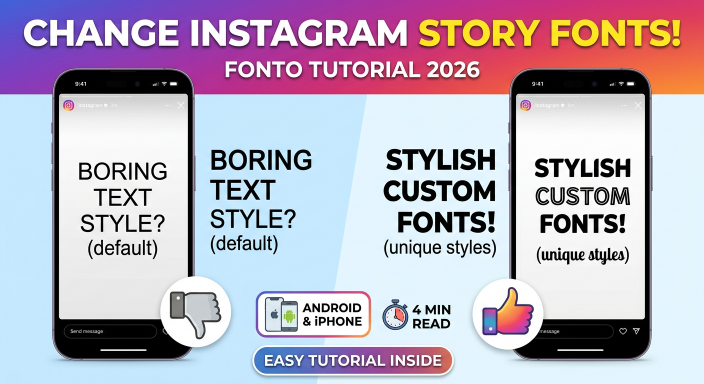
Instagram stories disappear in 24 hours, but bad typography gets ignored in 2 seconds. The default system fonts (Roboto, San Francisco) are safe – but boring. Changing your font style helps you:
- Stop the scroll with unique text
- Match your brand identity
- Increase time spent on your story
- Look more professional than 80% of casual users
Fonto gives you +50 custom fonts on iOS and 100+ on Android that you can copy and paste directly into Instagram – no rooting, no external keyboard needed. Available for both iPhone and Android devices.
1. Why font style matters in Instagram stories
Visual content with unique typography gets 3x more engagement. Most Instagram users never leave the default font, so using a custom style makes you stand out instantly. With Fonto, you can also add glass-style labels, neon effects, and artistic backgrounds.
2. What you can create with Fonto
With Fonto (available on Google Play and App Store), you can design:
- ✦ Custom text labels with glass, neon, or brushed effects
- ✦ Trending backgrounds optimized for story dimensions (9:16)
- ✦ Quotes, poetry, or captions in unique typography
- ✦ Highlight covers with consistent font style
- ✦ WhatsApp status, Twitter, Facebook posts (same copy-paste method)
The latest version (2026) added glass-style labels – modern semi-transparent stickers that look like frosted glass.
3. Method 1: Copy & paste fonts (fastest way for both iPhone & Android)
This method works like a universal clipboard. No need to save images to your gallery.
- Open Fonto app on your iPhone or Android phone
- Type your text (e.g., “Good morning” or “Sale ends today”)
- Choose a font style from the list – you can preview instantly
- Tap the Export button (located at top right)
- Select Copy to clipboard
- Go to Instagram and start a new story
- Tap on the screen to bring up the text tool
- Long-press the text area and choose Paste (on iOS, tap and hold then select Paste)
⚠️ If paste via clipboard doesn’t work on your device, use Method 2 below.
4. Method 2: Save as image sticker (backup method for all devices)
Use this if the clipboard method fails on your specific device.
- Design your text in Fonto (same as Method 1)
- Tap Export → Save to gallery (or “Save to Photos” on iPhone)
- Open Instagram story
- Take or upload a photo/video as background
- Tap the Sticker icon (square smiley face)
- Select Gallery sticker (iOS: “Photos” sticker)
- Choose the font image you saved from Fonto
- Resize and place it anywhere on your story
✅ Your custom font appears as a transparent-background sticker.
5. How to use glass-style labels (new feature on both platforms)
Glass labels are semi-transparent boxes with blurred edges – very popular in 2025-2026 story designs.
To add a glass label in Fonto:
- Open Fonto and type your short text (max 2-3 words works best)
- Scroll through label styles until you see Glass category
- Tap any glass label (e.g., “Glass Frost”, “Glossy Glass”)
- Adjust transparency using the slider (30-50% recommended)
- Export using Copy to clipboard or Save to gallery
- Paste into Instagram story
6. Pro tips for higher engagement
From testing 50+ Instagram story designs, these patterns get 2-3x more taps:
| ✅ What works | ❌ What doesn’t |
|---|---|
| 1-2 font styles per story | 5+ different fonts |
| High contrast (white text on dark glass) | Low contrast (grey on light background) |
| Labels placed in top or center | Text stuck at the very bottom |
| Brief text (under 8 words) | Long paragraphs |
7. Frequently asked questions (FAQ) – Fonto on iPhone & Android
Fonto – story font for IG | Available on Google Play & App Store | © 2026
Recent posts


Recent Comments