
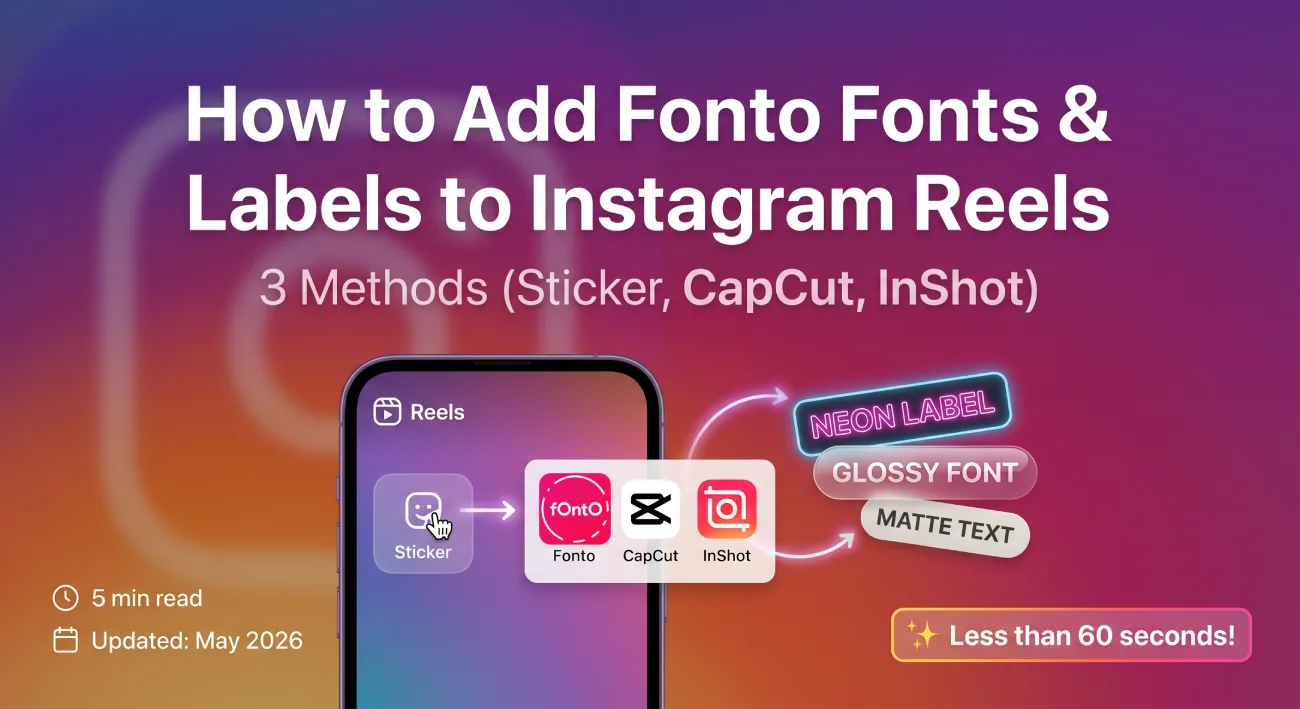
Instagram Reels only give you basic system fonts. But with Fonto, you get access to thousands of custom fonts + hundreds of labels (glass, neon, matte, glossy, and more).
The best part? Adding them to Reels and Stories takes less than 60 seconds using the sticker method.
1. What you can create in Fonto
Fonto isn’t just one style. It’s a complete library:
- 1,000+ Custom fonts – Script, bold, handwriting, decorative, multilingual
- 5000+ Labels & backgrounds – Glass, neon, matte, glossy, brushed, 3D
- 10+ Glass styles (Pill, Floating, Neon Aura, Four Glow, Search Bar, Multi Glass, and more)
- Daily updates – New fonts and labels added regularly
2. The core workflow (same for all methods)
Before choosing a method, create your text in Fonto:
- Open Fonto on your Android or iPhone
- Type your text (e.g., “SHOP NOW”, “TRAVEL”, or a quote)
- Browse thousands of fonts – tap any font to preview instantly
- Add a label from hundreds of options (glass, neon, matte, or none)
- Tap Export → Save to gallery (saves as PNG with transparent background)
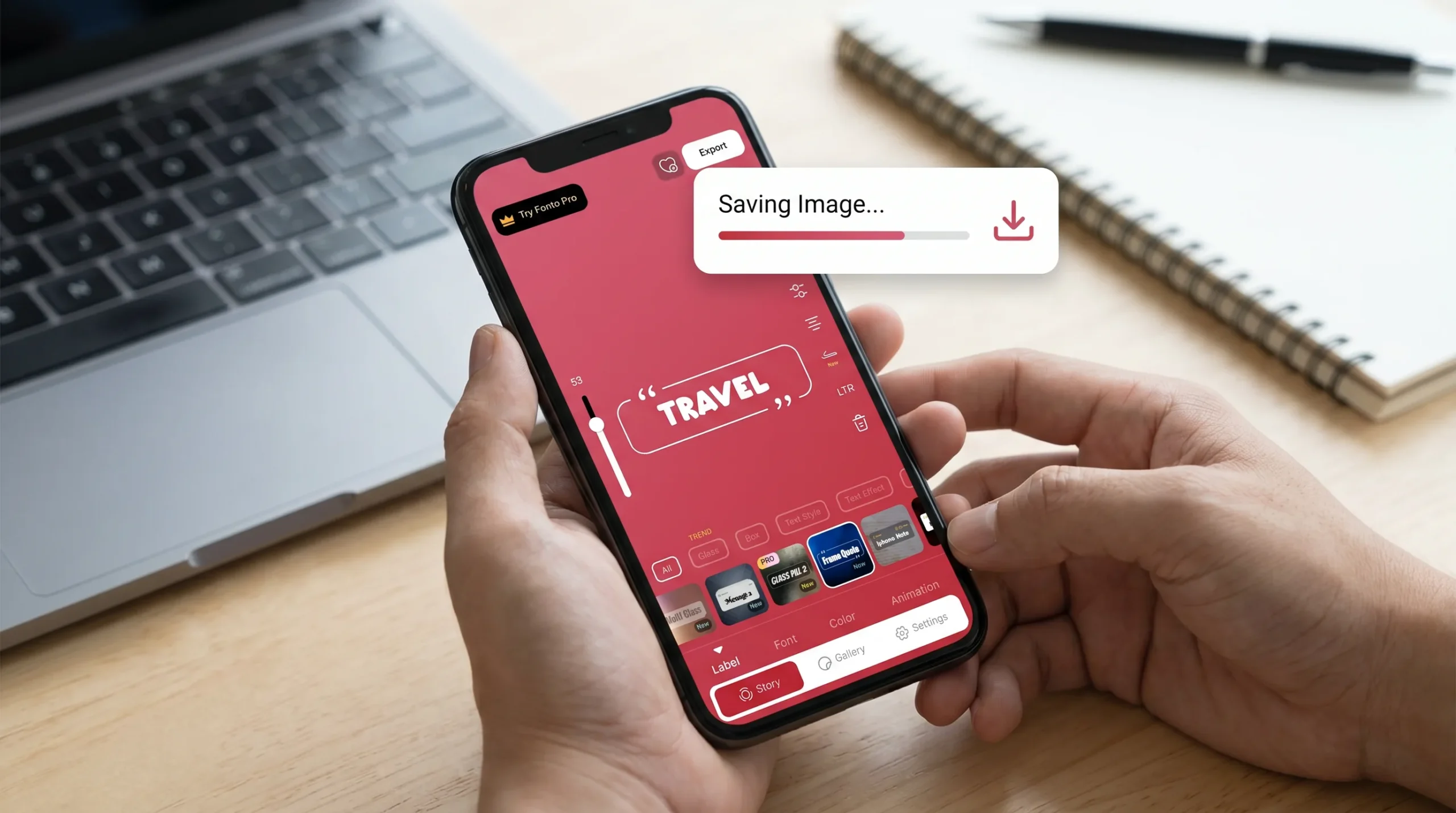
📸 Screenshot 1: Fonto editor – browse thousands of fonts + hundreds of label designs (glass, neon, matte) + export PNG.
3. Method 1: Add directly to Reels as a sticker (fastest – 30 seconds)
No extra apps. No editing software. Just Fonto + Instagram.
🎯 Best for:
- Quick Reels (daily posts, behind-the-scenes, updates)
- Static text (no animation needed)
- Posting in under a minute
Step-by-step:
- After saving your PNG from Fonto, open Instagram and start a Reel
- Record or upload your video
- Tap the Sticker icon (square smiley face at the top)
- Select Gallery sticker
- Choose the PNG you saved from Fonto
- Drag to position, pinch to resize
- Tap Done and post
4. Method 2: Add with CapCut (animated text – professional)
For animated text (fade, typewriter, bounce, slide), use CapCut. It’s free and easy.
🎯 Best for:
- Quote Reels and educational content
- Animated entrances (typewriter, fade in, slide up)
- Professional-looking Reels
Step-by-step:
- Open CapCut and start a new project
- Import your Reel video
- Tap Sticker → Add sticker → Import from gallery
- Select your Fonto PNG
- Position and resize the text
- Tap Animation → choose an effect (Typewriter, Fade in, Slide up, Bounce)
- Adjust duration (1-1.5 seconds)
- Export → post to Reels
5. Method 3: Add with InShot (simple alternative)
InShot is simpler than CapCut. Great for basic text overlays.
🎯 Best for:
- Simple text overlays
- Users who prefer InShot’s interface
- Basic fade and pop-up animations
Step-by-step:
- Open InShot and add your Reel video
- Tap Text → Add text
- Tap the image/photo icon (next to the text box)
- Select your Fonto PNG from gallery
- Position and resize
- Tap Animation → choose Fade, Pop-up, or Slide
- Export → post to Reels
6. Comparison: Which method should you use?
| Feature | Method 1: Direct Sticker | Method 2: CapCut | Method 3: InShot |
|---|---|---|---|
| Time to complete | ✅ 30 seconds | ⚠️ 2-3 minutes | ⚠️ 2 minutes |
| Animation effects | ❌ None | ✅ Typewriter, Fade, Slide, Bounce | ✅ Fade, Pop-up, Slide |
| No extra app needed | ✅ Yes | ❌ Needs CapCut | ❌ Needs InShot |
| Best for | Quick daily Reels | Professional animated Reels | Simple animations |
Use Method 1 for daily Reels and quick posts.
Use Method 2 (CapCut) for quotes, tutorials, and content you want to look polished.
7. Frequently asked questions (FAQ)
8. Download Fonto
Related tutorials:
📌 How to Change Font Style in Instagram Stories – Fonto Tutorial
📌 How to Create Glass Labels & Modern Stickers for Instagram Stories
📌 How to Make Instagram Story Highlight Covers – Fonto Tutorial
Fonto – story font for IG | Thousands of fonts + hundreds of labels | © 2026


Recent Comments