
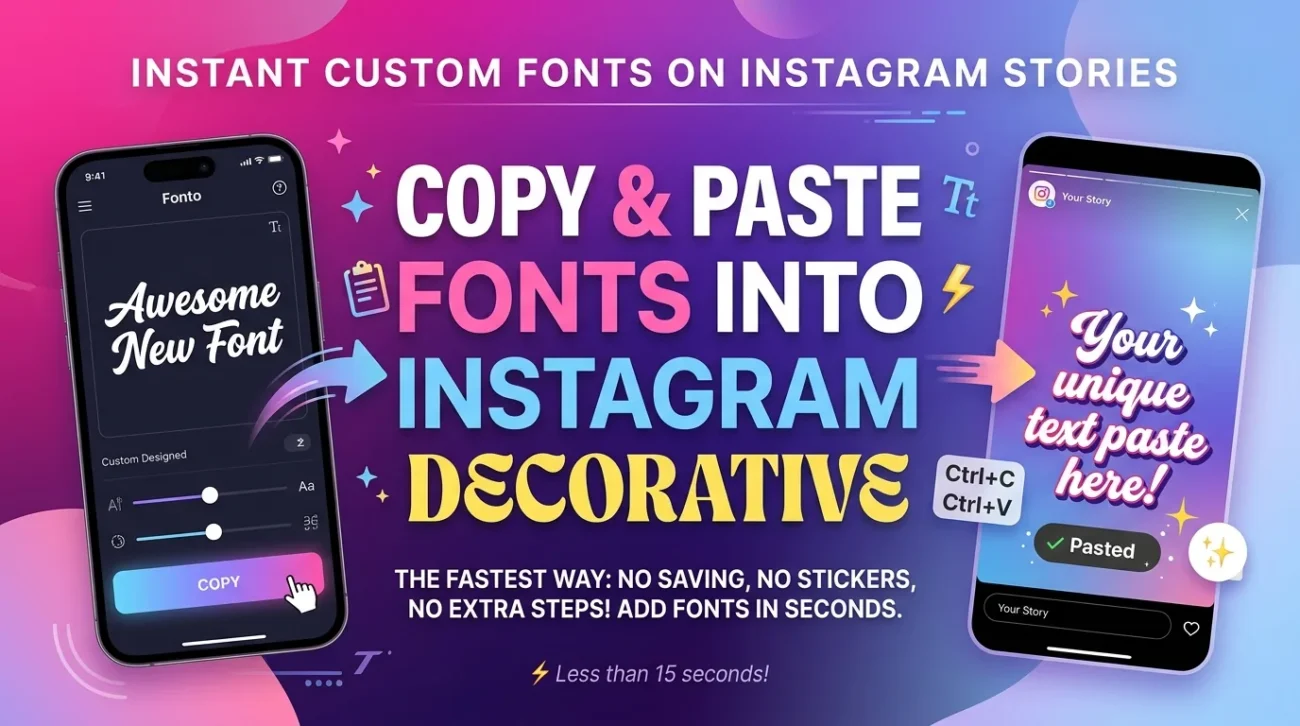
The fastest way to add custom fonts to your Instagram Stories? Copy and paste. No saving to gallery, no stickers, no extra steps.
Fonto’s clipboard method lets you design your text in the app and paste it directly into Instagram – preserving the font style, color, and size. It takes less than 15 seconds.
1. Why the clipboard method is the fastest
Most font apps make you save images to your gallery, then add them as stickers. That’s slow and fills your camera roll with text images.
Fonto’s clipboard method is different:
- ⚡ 15 seconds From open to pasted
- 📱 No gallery clutter Nothing saved to your phone
- 🎨 Preserves style Font, color, shadow, background – everything stays
- 🔄 Reusable Copy once, paste multiple times
2. Step-by-step: Copy & paste from Fonto to Instagram Stories
- Open the Fonto app on your Android or iPhone
- Type your text (e.g., “Good morning”, “Sale ends today”, or a quote)
- Choose any custom font from Fonto’s library – tap to preview instantly
- Add colors, shadows, backgrounds, or labels (optional)
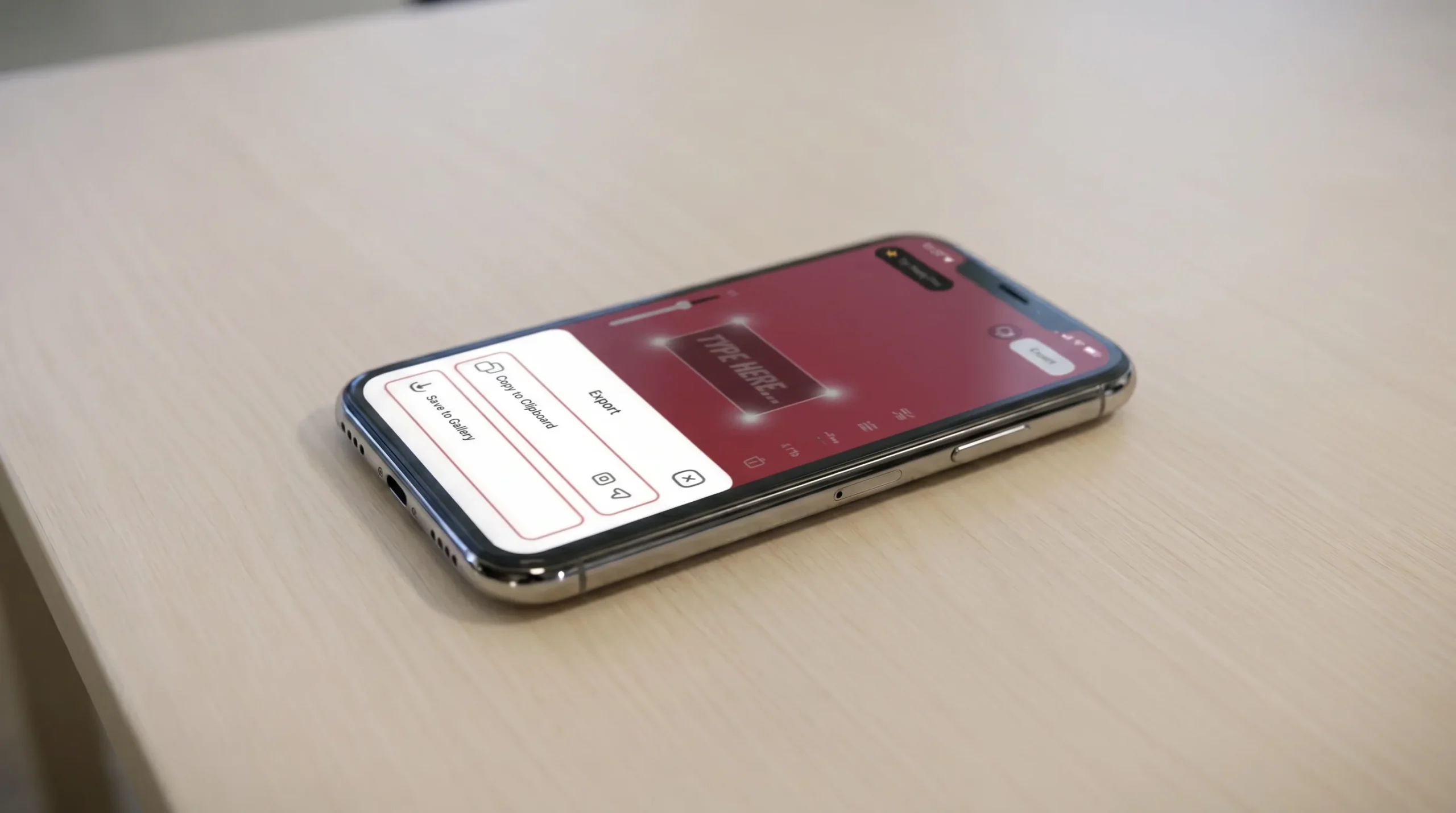
- Tap the Export button (top right corner)
- Select Copy to clipboard
- Switch to Instagram and start a new Story
- Tap on the screen to bring up the text tool (the “Aa” icon)
- Long-press the text area and select Paste (on iOS: tap and hold → Paste)
- Your custom font appears! Adjust size and position, then post
3. What happens if paste doesn’t work?
On some Android devices, the keyboard might not show the “Paste” option. Here’s the fix:
- After copying in Fonto, open Instagram Story
- Tap the text area to bring up your keyboard
- Tap and hold on the text input field (not the keyboard)
- Select Paste from the pop-up menu
- If that still doesn’t work, tap the clipboard icon on your keyboard (Gboard users)
4. Clipboard method vs. Save to gallery method
| Feature | Clipboard Method | Save to Gallery |
|---|---|---|
| Speed | ✅ 15 seconds | ⚠️ 30 seconds |
| Saves to camera roll | ✅ No | ❌ Yes |
| Works on Stories | ✅ Yes | ✅ Yes |
| Works on Reels | ❌ No (paste not supported) | ✅ Yes (as sticker) |
| Preserves transparency | ✅ Yes | ✅ Yes |
| Best for | Quick Stories, text-only | Reels, glass labels, complex designs |
5. What types of text can you copy & paste?
Almost everything you create in Fonto can be copied to clipboard:
- Custom fonts – Any font from Fonto’s library (50+ on iOS, 100+ on Android)
- Colored text – Solid colors or gradients
- Text with shadows – Adjustable shadow effects
- Text with backgrounds – Solid or gradient backgrounds behind text
- Simple labels – Basic label styles (glass labels require PNG method)
6. Pro tips for better copy-paste results
📏 Size matters
In Fonto, make your text slightly larger than you think you need. You can always shrink it in Instagram, but you can’t enlarge it without losing quality.
🎨 Contrast is key
Light text on dark background, or dark text on light background. Avoid low-contrast combinations (e.g., grey on white).
📝 Keep it short
Long paragraphs don’t work well in Stories. Stick to 1-2 lines maximum for best results.
🔄 Copy once, paste many times
After you copy from Fonto, the text stays on your clipboard. You can paste it into multiple Stories, multiple apps without opening Fonto again.
7. Frequently asked questions (FAQ)
8. Download Fonto
Related tutorials:
📌 How to Change Font Style in Instagram Stories – Fonto Tutorial
📌 How to Create Glass Labels & Modern Stickers for Instagram Stories
📌 How to Make Instagram Story Highlight Covers – Fonto Tutorial
📌 How to Add Fonto Fonts to Instagram Reels – 3 Methods
📌 How to Use Fonto Background Gallery for Instagram Stories & Reels
Fonto – story font for IG | Copy, paste, and post in 15 seconds | © 2026


Recent Comments