
Table of contents
🎨 Instagram creators on Android & iPhone
🔄 Updated: June 2026
You don’t need Canva, Photoshop, or any other design tool. Fonto has everything you need to create a complete, professional Instagram Story – all in one app.
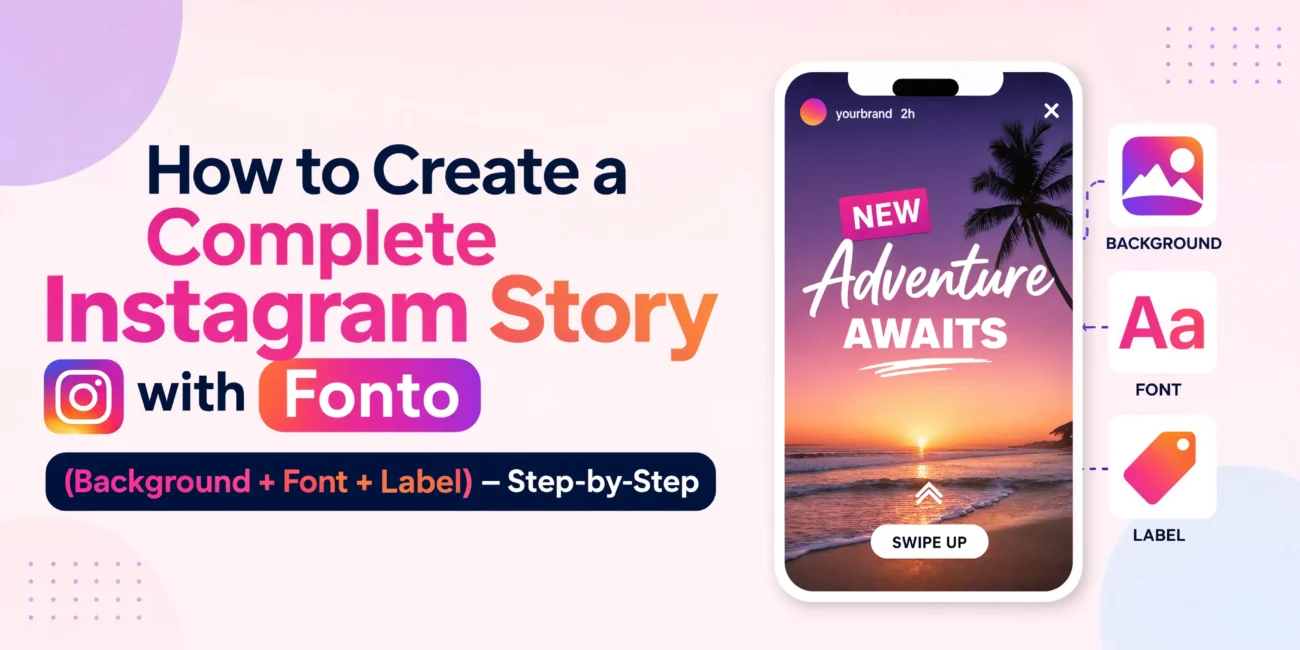
In this tutorial, you’ll learn how to combine three key elements:
- 🎨 Backgrounds – from Fonto’s 500+ trending Gallery
- ✍️ Custom Fonts – from Fonto’s 1000+ font library
- 🏷️ Labels – glass, neon, matte, and more
Total time: less than 5 minutes.
1. What you’ll create in this tutorial
By the end of this guide, you’ll be able to create Stories like this:
- An announcement Story (gradient background + bold font + glass label CTA)
- A quote Story (aesthetic background + elegant font + minimalist label)
- A sale/promo Story (neon background + eye-catching font + neon label)
2. Step 1: Choose a background
Fonto’s Gallery has 500+ trending backgrounds organized by category. Here’s how to pick one:
- Open Fonto and tap the Gallery icon at the bottom
- Tap on the Background category
- Browse sub-categories: Gradients, Neon, Floral, Dark Mode, Aesthetic, etc.
- Tap any background to preview it full-screen
- If you like it, tap Use this background (or just start adding text)
Fonto Gallery showing Background category with multiple options (Gradients, Neon, etc.)
→ Take a screenshot of the Gallery with Background category open
3. Step 2: Add custom text with Fonto fonts
Now that you have a background, it’s time to add your message with a unique font.
- Tap the Text/New button (or tap anywhere on the canvas)
- Type your message (keep it short – 1-2 lines maximum)
- Tap on the font name at the top to open the font library
- Browse 1,000+ fonts – tap any font to preview instantly on your text
- Once you’re happy, adjust size, color, and position
Text editor showing font library with multiple font options
→ Take a screenshot of the font selection screen
4. Step 3: Add a label (optional but recommended)
Labels make your text stand out. Fonto has hundreds of labels – glass, neon, matte, glossy, brushed, and more.
- Tap on your text to select it
- Tap the Label/Background icon (usually next to the color picker)
- Browse through label categories – Glass, Neon, Matte, Glossy, etc.
- Tap any label to apply it to your text
- Adjust transparency (for glass labels) or color (for neon labels)
Label selection screen showing Glass, Neon, Matte categories
→ Take a screenshot of the label gallery
5. Step 4: Export and post
Your Story is ready! Here’s how to get it to Instagram:
- Tap the Export button (top right corner)
- Select Copy to clipboard (fastest for Stories) or Save to gallery
- Switch to Instagram and start a new Story
- If you used Copy to clipboard: long-press the screen and select Paste
- If you used Save to gallery: tap Sticker icon → Gallery sticker → select your image
- Adjust position if needed, then tap Your Story to post
Final Story on Instagram (example result)
→ Take a screenshot of the finished Story on Instagram
6. Three complete examples (copy these designs)
Example 1: Sale Announcement
- Background: Neon or bright gradient (red/black, yellow/black)
- Text: “50% OFF”
- Font: Bold, thick sans-serif
- Label: Neon Glass (red or pink)
- Secondary text: “Limited time” (small, at bottom)
Example 2: Motivational Quote
- Background: Aesthetic pastel or minimalist gradient
- Text: “You got this”
- Font: Elegant script or handwritten
- Label: None, or a subtle glass label (very low transparency)
- Position: Centered or bottom third
Example 3: New Product Launch
- Background: Dark mode or glass background
- Text: “NEW DROP”
- Font: Bold, futuristic
- Label: Glass Pill or Neon Aura
- Secondary text: “Link in bio” (small, at bottom with glass label)
7. Design checklist for professional Stories
✅ Before you post, check these:
- Contrast: Can you read the text easily? (Light text on dark bg, or dark text on light bg)
- Simplicity: Less is more. 1-2 lines of text maximum.
- Consistency: Use the same 2-3 fonts across all your Stories for brand recognition.
- Size: Text should be large enough to read at arm’s length.
- Label fit: The label shouldn’t cut off your text. Preview before exporting.
8. Frequently asked questions (FAQ)
9. Download Fonto
Related tutorials:
📌 How to Change Font Style in Instagram Stories – Fonto Tutorial
📌 How to Create Glass Labels & Modern Stickers for Instagram Stories
📌 How to Make Instagram Story Highlight Covers – Fonto Tutorial
📌 How to Add Fonto Fonts to Instagram Reels – 3 Methods
📌 How to Use Fonto Background Gallery for Instagram Stories & Reels
📌 How to Copy & Paste Custom Fonts into Instagram Stories – Fonto Clipboard Method
Fonto – story font for IG | Everything you need for professional Stories | © 2026
Recent posts


Recent Comments